
How to make study-model pictures from your upper and lower scans with Occlusal view.
- What it does
- Before you start
- Step by step
- The orthodontic picture set
- Settings
- What it costs
- Common questions
What it does
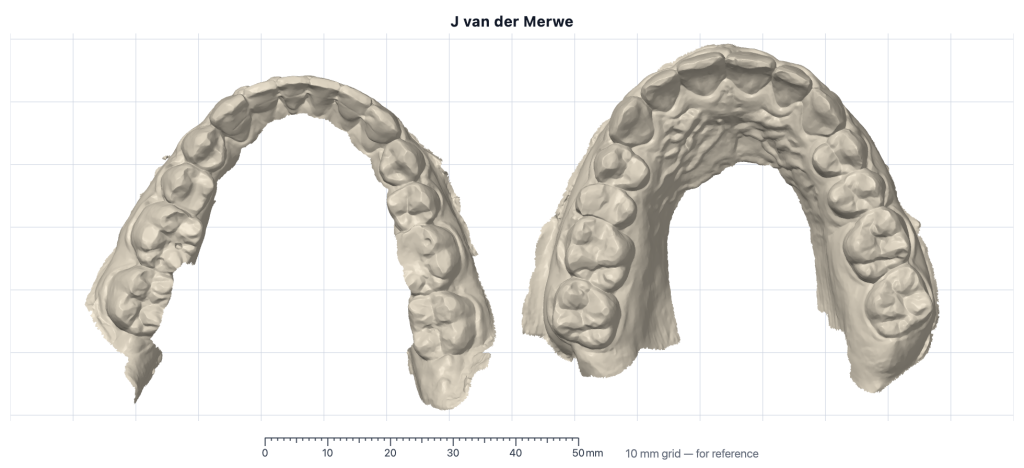
Occlusal view turns a pair of intraoral scans into study-model pictures on a 10 mm grid, for your records and for case planning. It makes two things:
- The occlusal view (free): the lower and upper arches side by side, as scanned, on the grid with a 50 mm ruler and the patient’s name.
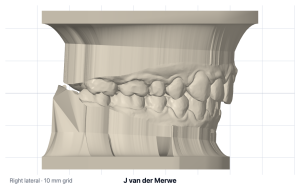
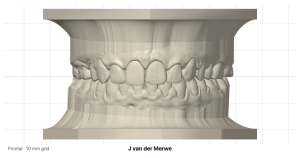
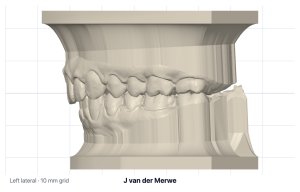
- The orthodontic picture set: the five standard record views (right lateral, frontal, left lateral, maxillary occlusal and mandibular occlusal) of the scans trimmed and set on study-model bases, each its own picture, together with the occlusal view, in a zip with a folder named after the patient.
Before you start
- An approved practice account: log in. The first time, you tick a box to accept the Occlusal view terms.
- The upper and lower STL files from your scanner, exported in the bite (most scanners do this). Scans saved apart still work, but each jaw is then shown on its own: a separate bite scan can be added, but it is not used yet.
- A desktop or laptop computer with a current browser: Chrome, Edge, Firefox or Safari.
Your patient’s privacy. Everything happens in your browser. The scans, the pictures and the patient’s name never reach the website.
Step by step
- Type the patient’s name (or a case number) under Patient name. It is written on the pictures and used for the file names. Nothing downloads without it.
- Add the scans: press Upload scans, or drop both files anywhere in its box. Occlusal view reads the file names to put each scan in its place under Upper model, Lower model and Bite (optional); a file whose name does not say goes to the first empty place. Use choose or remove under a heading to change one.
- Check the occlusal view. If the arches sit crooked, straighten them with the buttons: ↺ Spin / Spin ↻, Tilt back / Tilt forward, Tilt left / Tilt right (one degree a press; hold to repeat), Flip, and Reset to start again. Read any notes shown in the yellow box above the pictures.
- Press Download occlusal view for the free picture.
- For the record views, unlock the picture set (see below), check the five views, and press Download orthodontic picture set.
True to scale. The pictures carry their real scale: print them at actual size (100 %) and the grid squares measure 10 mm.
The orthodontic picture set
Until the set is unlocked you see your own five views, marked Preview Denti Model, so you can check them before you pay; the pictures you download have no marking. With credits, press Unlock the picture set · 1 credit; Occlusal view asks you to check that the right scans are loaded, because a used credit cannot be given back. With a subscription the set is open straight away. Without credits, buy them with the buttons under the set, or see Credits and plans under the tool.
Once open, you can turn a single view by ticking Free rotate under it and dragging in the picture (reset view puts it back), and change the base with Base height and Base curve. The same scans stay unlocked for 24 hours.
Settings
| Setting | Choices | Default | What it changes |
|---|---|---|---|
| Base height | 4 – 10 mm | 4 mm | The height of the study-model base block in the record views. |
| Base curve | 2 – 8 mm | 4 mm | The rounded curve from the gum edge down to the base block. |
| Spin, Tilt, Flip, Reset | 1° steps | straight as scanned | Straightens the arches on the grid, for all the pictures. |
What it costs
- The occlusal view is free, for every case.
- The orthodontic picture set uses one credit per case, or is included in Occlusal view Unlimited, a monthly subscription (All Software, for every Dentiquip tool, is coming soon). The same scans stay unlocked for 24 hours.
- Credits and plans, under the tool, shows how many Occlusal view credits you have and what you can buy: credit packs and Occlusal view Unlimited. The checkout opens in a new tab, so your scans stay loaded; come back to the tool’s tab when you have paid. Credits do not expire and are not refundable. One subscription per account; cancel it any time in My Account, and it runs to the end of the paid month. With a subscription, the box shows it and when it renews.
- Practices outside South Africa, Namibia, Zimbabwe, Botswana and Kenya see the International prices. They are in rand, with today’s approximate dollar amount beside them. Your bank converts the payment, so the amount on your statement may differ slightly.
- Prices are on the Pricing page.
Common questions
It says These look like the same scan: check the upper and lower files.
The same file was added twice, or the upper and lower exports are identical. Use choose under one heading to add the other jaw’s file.
It says This scan does not look like millimetres; the grid will not be true.
The file seems to be in another unit, so the grid would not be true. Export the scan again in millimetres.
It says These scans weren’t saved in a bite; the side views show each jaw on its own.
Export the upper and lower scans from your scanner in occlusion and add them again. A separate bite scan is not used yet. Until then each jaw is placed on its own: choose Lower or Upper before the straightening buttons to straighten them one at a time.
The download buttons are greyed out.
The tool says Type the patient name above to download. The name goes on every picture, so nothing downloads without it.
It says The picture set is not on sale for your account yet.
There are no credits or subscriptions on sale for your country yet. The occlusal view stays free. Please contact us, and we will tell you when the picture set is available to you.
It says The upper and lower files seem to be swapped, so they were swapped back.
Your scanner saved the upper scan under the lower’s name, or the files went into the wrong places. Occlusal view noticed and corrected it; check that the pictures look right.
It says The scan does not show the full sides of the last tooth…
The back of the scan was not scanned all round, so a few millimetres at that end were left off the trimmed models. The occlusal view is not affected. Rescan that area if you need those teeth in the record views.
It says Something went wrong showing the pictures in this browser.
Reload the page and try again. If it happens again, copy the message (it names the problem) into the Help us improve Occlusal view box below the tool and say which browser you use.
More help
Use the Help us improve Occlusal view box under the tool to report a problem or suggest something (you can add a picture or screenshot to show what you mean), see the Video training page, or contact us.